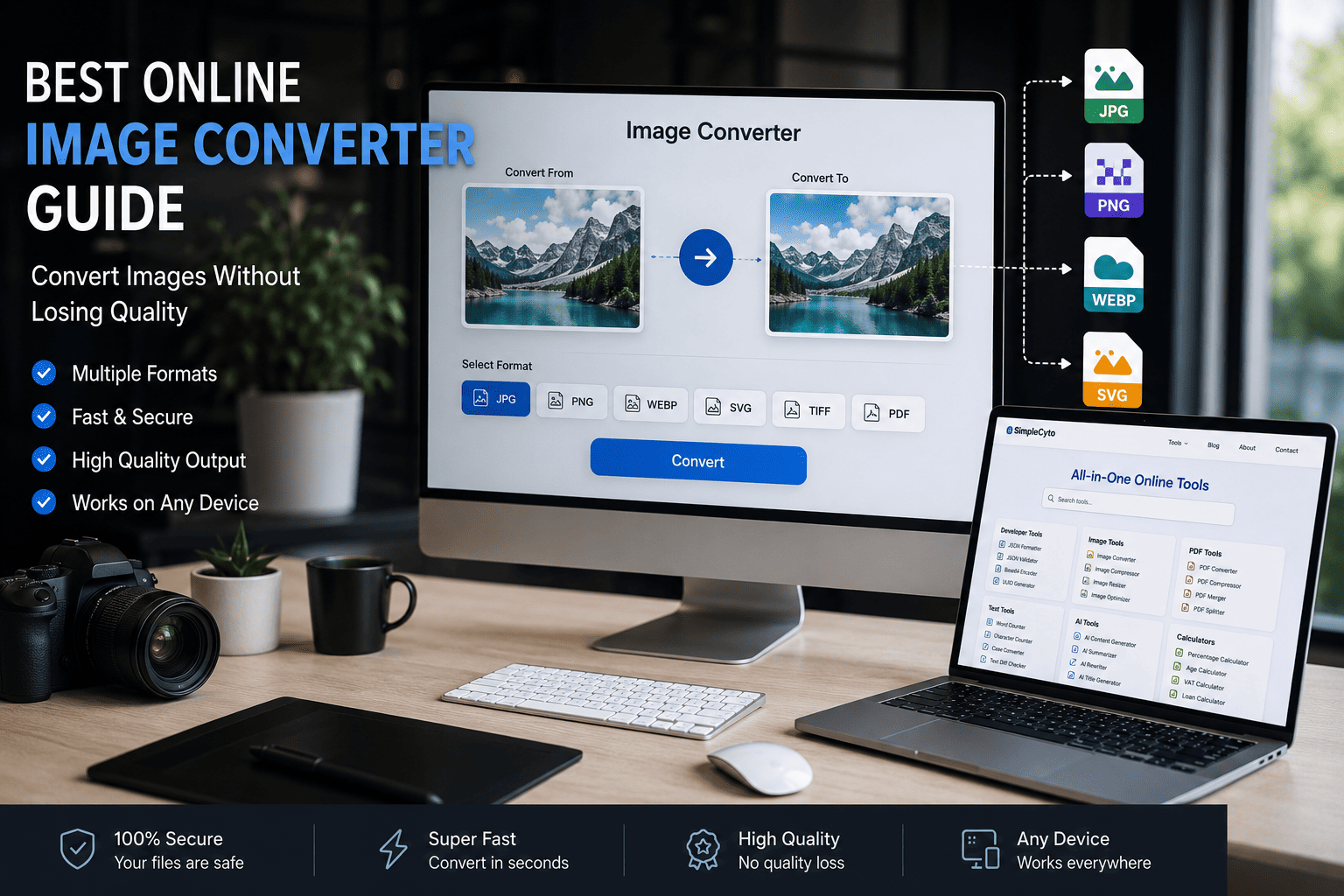
Best Online Image Converter Guide: Convert Images Without Losing Quality
Learn how to convert images online without losing quality, improve workflows, and choose the right image formats for every project.
Best Online Image Converter Guide: Convert Images Without Losing Quality
Images are a critical part of modern digital communication. Whether you're managing a website, creating social media content, designing marketing materials, building applications, or sharing documents, image files are everywhere.
However, not all image formats serve the same purpose. Using the wrong format can lead to large file sizes, slow-loading websites, compatibility issues, and poor user experiences.
This is where an online image converter becomes one of the most useful productivity tools available.
By converting images into the right format, users can improve performance, maintain quality, reduce storage requirements, and streamline digital workflows.
In this guide, you'll learn how image converters work, when to use different image formats, common mistakes to avoid, and how to build an efficient image conversion workflow.
Why Image Conversion Matters
Many users only think about image conversion when a file fails to upload or appears too large.
In reality, image conversion impacts:
- Website speed
- Search engine optimization
- User experience
- Storage consumption
- Email deliverability
- Mobile performance
- Content sharing
Choosing the correct image format can dramatically improve efficiency across multiple platforms.
Common Reasons to Convert Images
Users often convert images to:
- Reduce file size
- Improve compatibility
- Prepare images for websites
- Upload images to social media
- Convert screenshots into editable formats
- Optimize images for mobile devices
- Create presentation-ready graphics
Without proper conversion, image files may become unnecessarily large and difficult to manage.
Understanding Popular Image Formats
Before converting images, it's important to understand the strengths and weaknesses of each format.
JPG (JPEG)
JPEG remains one of the most widely used image formats.
Best for:
- Photographs
- Product images
- Blog images
- Social media content
Advantages:
- Small file sizes
- Broad compatibility
- Fast loading
Limitations:
- Lossy compression
- No transparency support
PNG
PNG is ideal for graphics that require transparency.
Best for:
- Logos
- Icons
- Screenshots
- User interface elements
Advantages:
- High image quality
- Transparency support
- Lossless compression
Limitations:
- Larger file sizes
WebP
WebP was designed to improve web performance.
Best for:
- Websites
- E-commerce stores
- Mobile applications
- Blogs
Advantages:
- Smaller file sizes
- Excellent quality
- Transparency support
Limitations:
- Some legacy software may not support it fully
SVG
SVG is a vector format rather than a pixel-based format.
Best for:
- Logos
- Illustrations
- Infographics
- Scalable graphics
Advantages:
- Infinite scalability
- Small file size
- Sharp rendering
Limitations:
- Not ideal for photographs
How an Online Image Converter Works
An online image converter transforms one image format into another without requiring software installation.
The process usually follows these steps:
- Upload the image.
- Select the desired output format.
- Start the conversion process.
- Download the converted file.
Modern image converters complete this process in seconds.
Many users prefer browser-based image converters because they eliminate the need for complex desktop applications.
Benefits of Using an Online Image Converter
Faster Workflow
Users can convert images directly in their browser.
No installation required.
Better Compatibility
Different platforms support different image formats.
Conversion ensures files work everywhere.
Improved Website Performance
Converting large images into optimized formats can significantly improve loading speed.
Reduced Storage Costs
Smaller files require less storage space.
Enhanced Productivity
Teams can process images more efficiently without relying on specialized software.
Practical Image Conversion Workflows
Workflow 1: Website Optimization
Problem:
Large images slow down page loading.
Solution:
- Convert PNG to WebP
- Compress oversized images
- Resize images before upload
Benefits:
- Better SEO
- Faster page speed
- Improved user experience
Useful tools:
- Image Converter
- Image Compressor
- Image Resizer
Workflow 2: Social Media Publishing
Problem:
Images exceed platform limits.
Solution:
- Convert to JPG
- Resize images
- Compress files when needed
Benefits:
- Faster uploads
- Better platform compatibility
- Reduced processing time
Workflow 3: E-Commerce Product Images
Problem:
Large product galleries negatively affect performance.
Solution:
- Convert images to WebP
- Generate optimized thumbnails
- Compress images before publishing
Benefits:
- Faster stores
- Better customer experience
- Higher conversion potential
Best Practices for Image Conversion
Choose the Correct Format
Different formats serve different purposes.
| Use Case | Recommended Format |
|---|---|
| Photographs | JPG |
| Logos | PNG or SVG |
| Websites | WebP |
| Graphics | PNG |
| Scalable Designs | SVG |
Resize Before Uploading
Uploading oversized images wastes bandwidth and storage.
Always resize images to match their intended display size.
Compress After Conversion
Image conversion and image compression work best together.
A converted image can often be compressed further without noticeable quality loss.
Keep Original Files
Always store original files before conversion.
This allows future edits without quality degradation.
Test Across Devices
Verify converted images on:
- Desktop
- Tablet
- Mobile devices
Common Image Conversion Mistakes
Converting Everything to JPG
Many users convert every image into JPG.
This often removes transparency and reduces quality.
Ignoring WebP
WebP provides significant performance benefits for websites.
Ignoring it means missing optimization opportunities.
Using Oversized Images
A large image displayed in a small container wastes resources.
Multiple Conversion Cycles
Repeated conversions can reduce quality over time.
Always convert from the original source file when possible.
Forgetting Compression
Conversion alone does not always optimize file size.
Compression remains essential.
Image Converter Checklist
Before publishing images online:
- Select the correct format
- Resize images appropriately
- Compress files when needed
- Verify image quality
- Test on multiple devices
- Keep original copies
- Optimize for website performance
Related Productivity Tools
Image conversion is often part of a broader digital workflow.
Helpful complementary tools include:
Image Compressor
Reduces file sizes without significantly affecting quality.
Image Resizer
Adjusts dimensions for websites, mobile apps, and social platforms.
PDF Converter
Converts images into PDF documents for sharing and archiving.
Text Cleaner
Useful when processing metadata or extracted image text.
AI Content Generator
Helps create image descriptions, captions, and supporting content.
Frequently Asked Questions
What is the best image format for websites?
WebP is often the best choice because it combines small file sizes with excellent image quality.
Does image conversion reduce quality?
It depends on the format and compression settings used during conversion.
Should I use PNG or JPG?
Use PNG for graphics and transparency. Use JPG for photographs.
Why are my images still large after conversion?
Additional compression may be required.
Is an online image converter safe?
Trusted online converters typically process files securely and quickly.
Conclusion
An online image converter is more than a simple file conversion utility. It is a productivity tool that helps users improve compatibility, optimize workflows, reduce storage requirements, and enhance digital performance.
Whether you're managing a website, running an online store, publishing content, or creating marketing materials, converting images into the right format can significantly improve results.
By choosing the correct formats, following optimization best practices, and combining image conversion with tools such as image compression and resizing, you can create a faster, more efficient, and more professional digital workflow.